

← Back to Blog
How to Set Up Apple Pay Capture with Shortcuts
Create one iOS Shortcuts automation so future eligible Apple Pay taps can arrive in Budgie for review.
Apple Pay
Shortcuts
iOS automation
August 13, 2026
6 min read
By Budgie Team

Create one iOS Shortcuts automation so future eligible Apple Pay taps can arrive in Budgie for review.
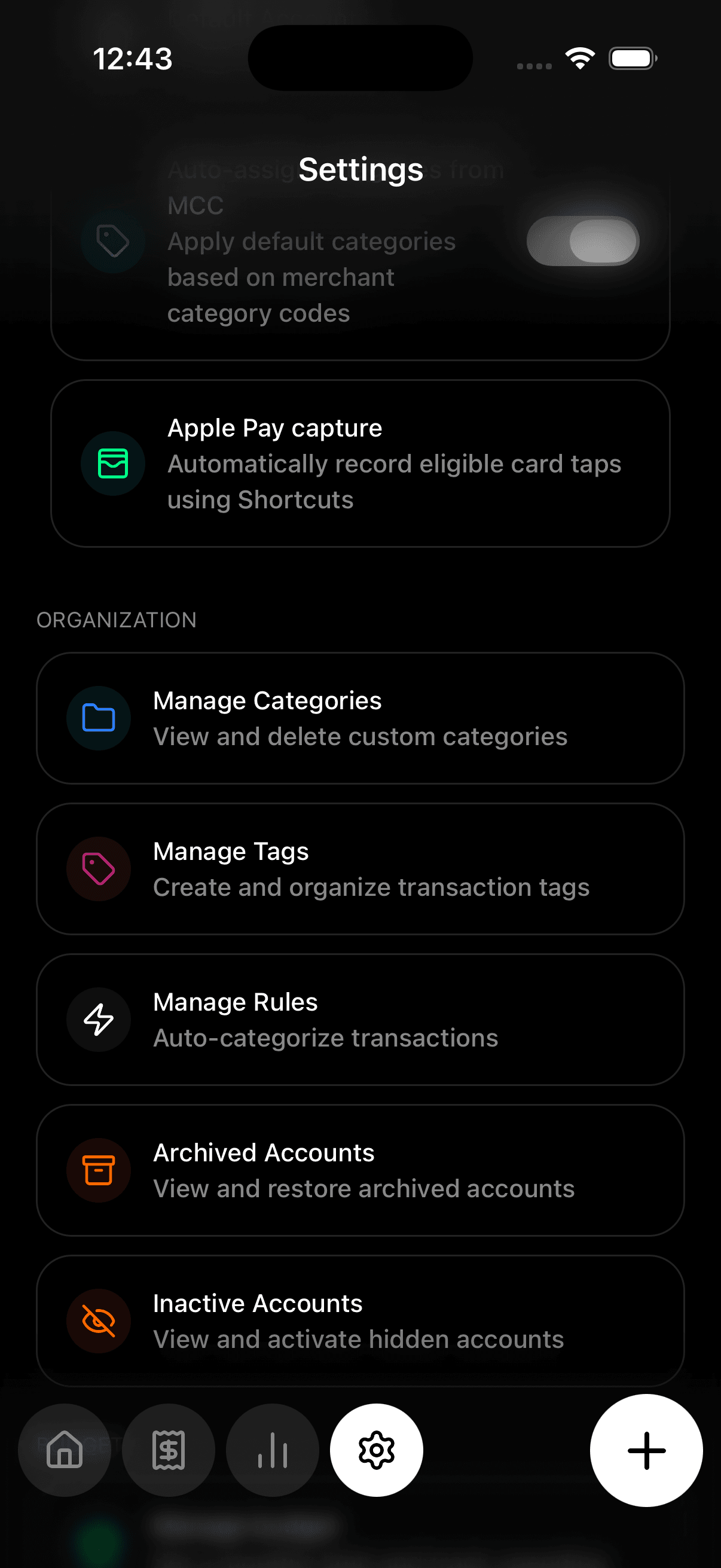
Open Budgie, go to Settings, then Apple Pay Capture. You do not choose an account: Budgie picks it from the card name, then your default account.
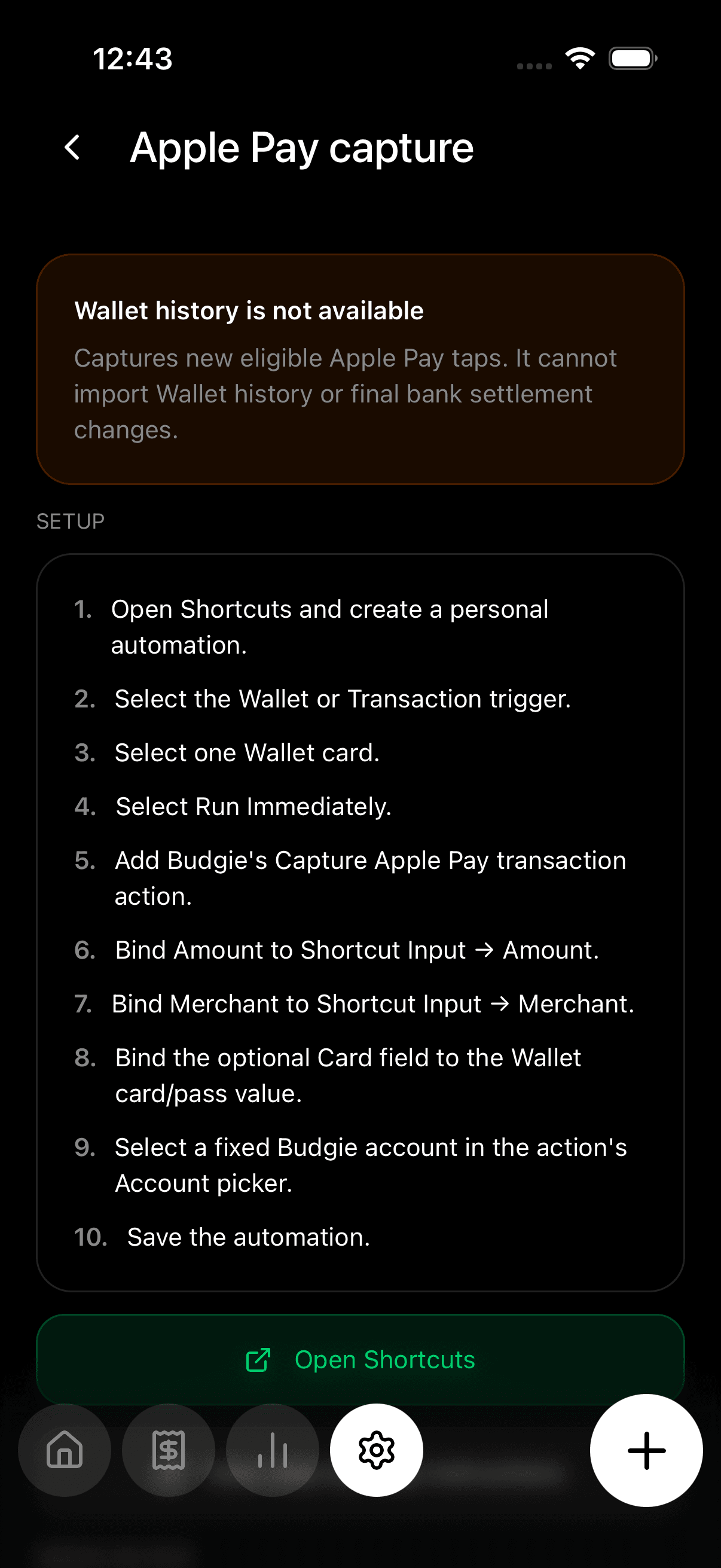
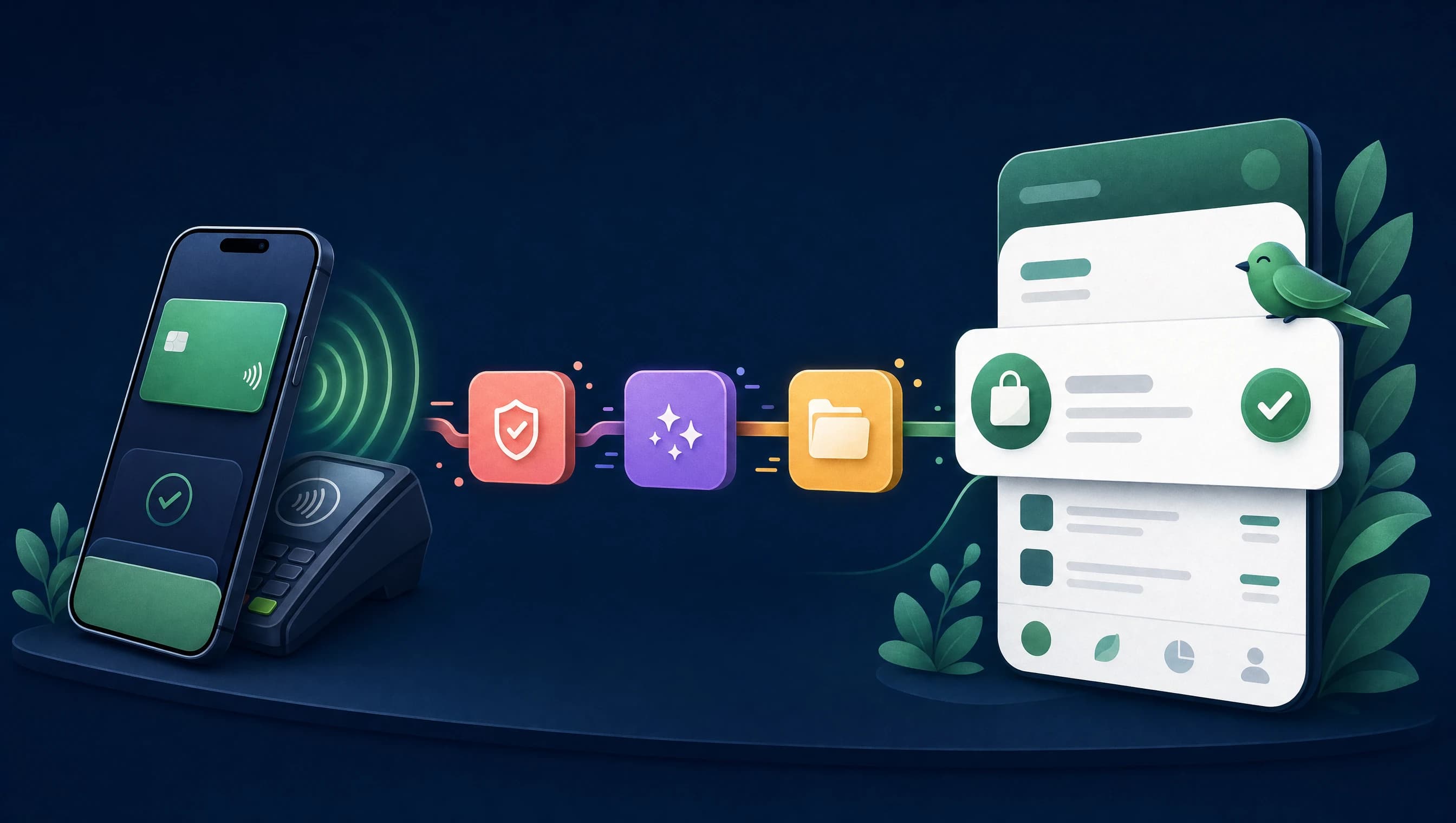
Open Shortcuts, choose Automation, then create one personal automation with the Transaction trigger. Select all the cards you use with Apple Pay and choose Run Immediately. One automation covers every selected card.
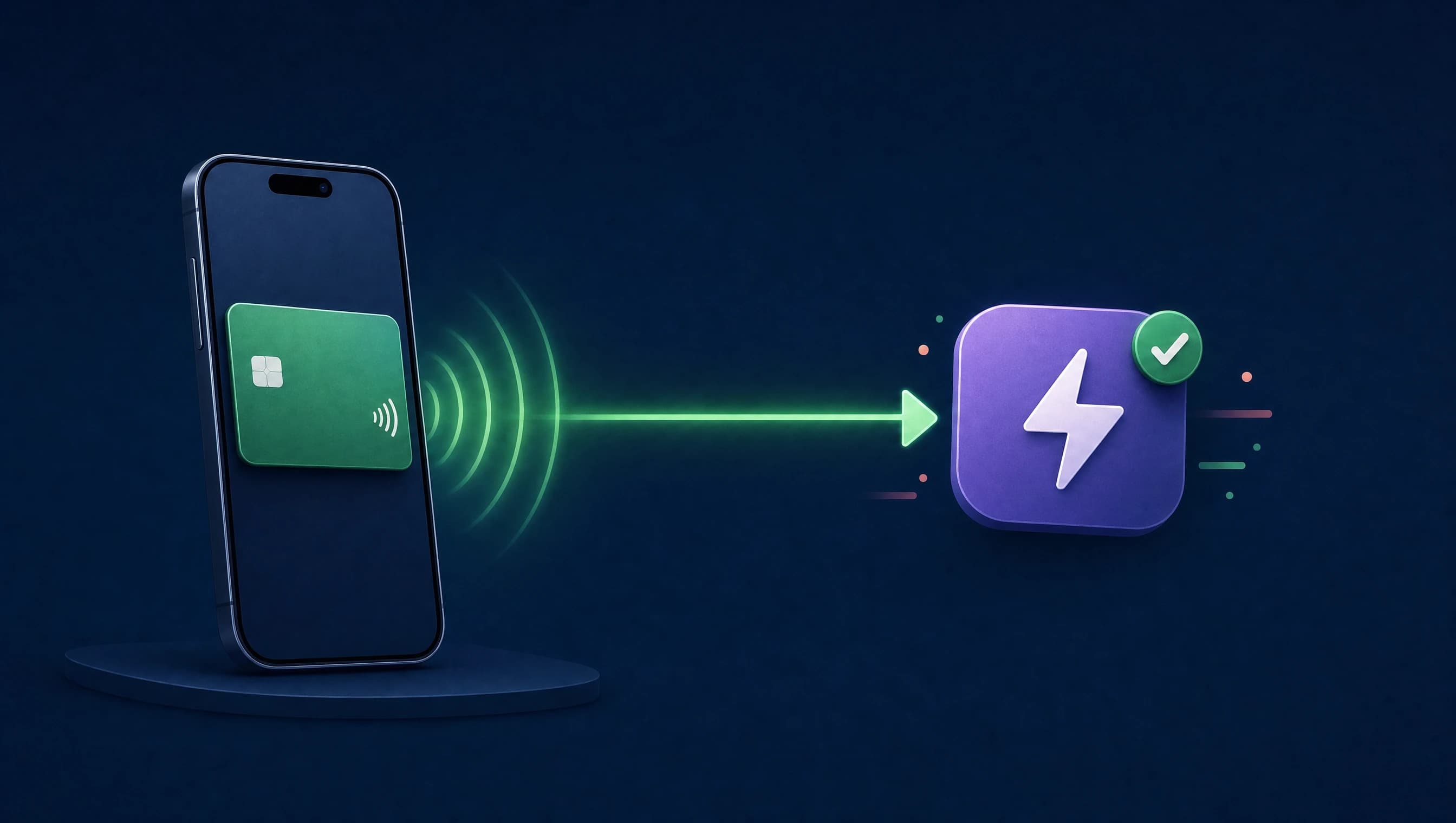
In the automation action list, search for Budgie. Add the Capture Apple Pay transaction action and set Amount, Merchant and Card from the Shortcut Input. Currency is optional and detected automatically. The optional Account field pins one account; leave it empty and Budgie chooses it for you.
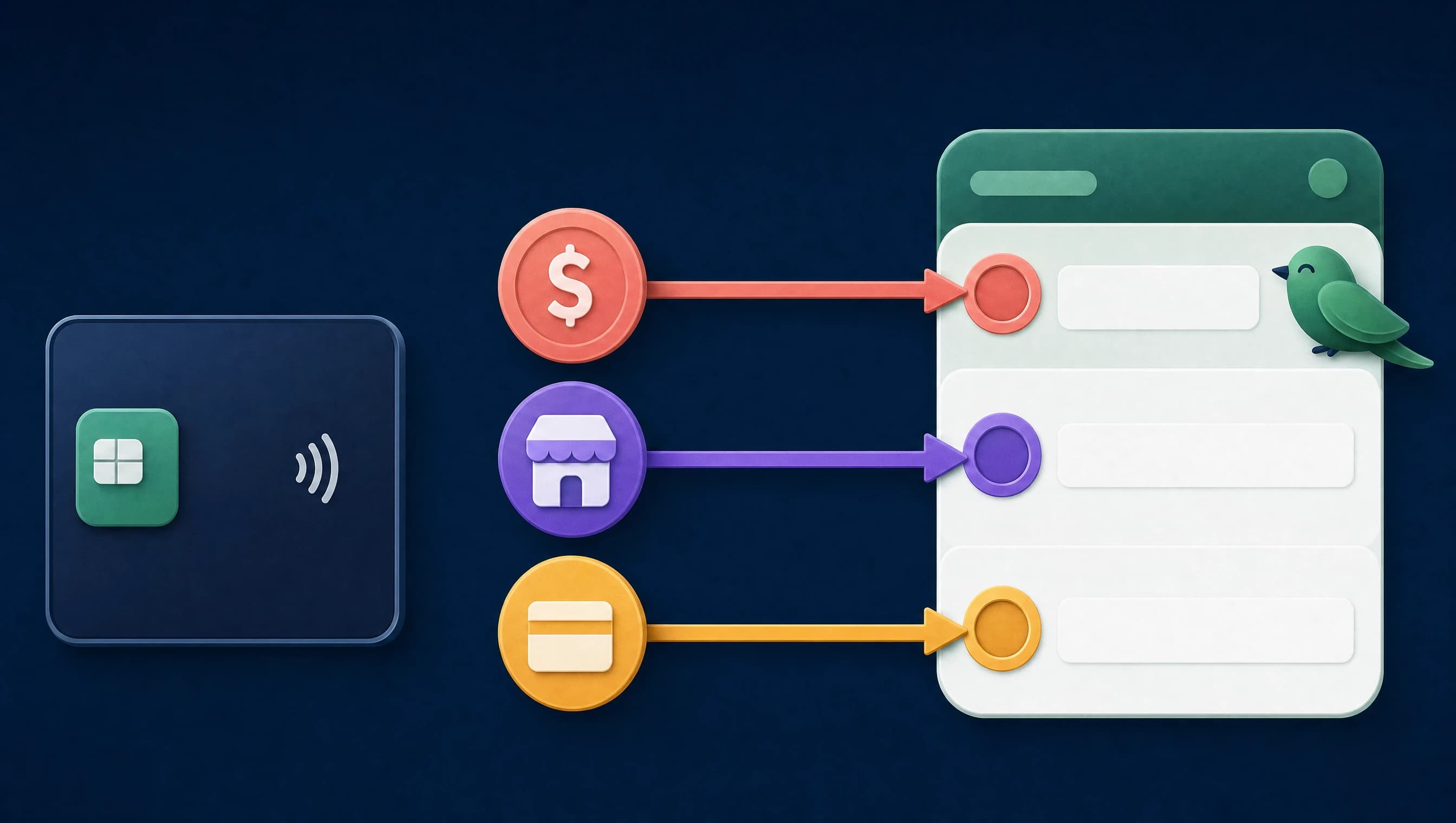
Review the automation, turn off extra confirmation prompts when iOS allows it, and save. The automation only affects future eligible Apple Pay taps.
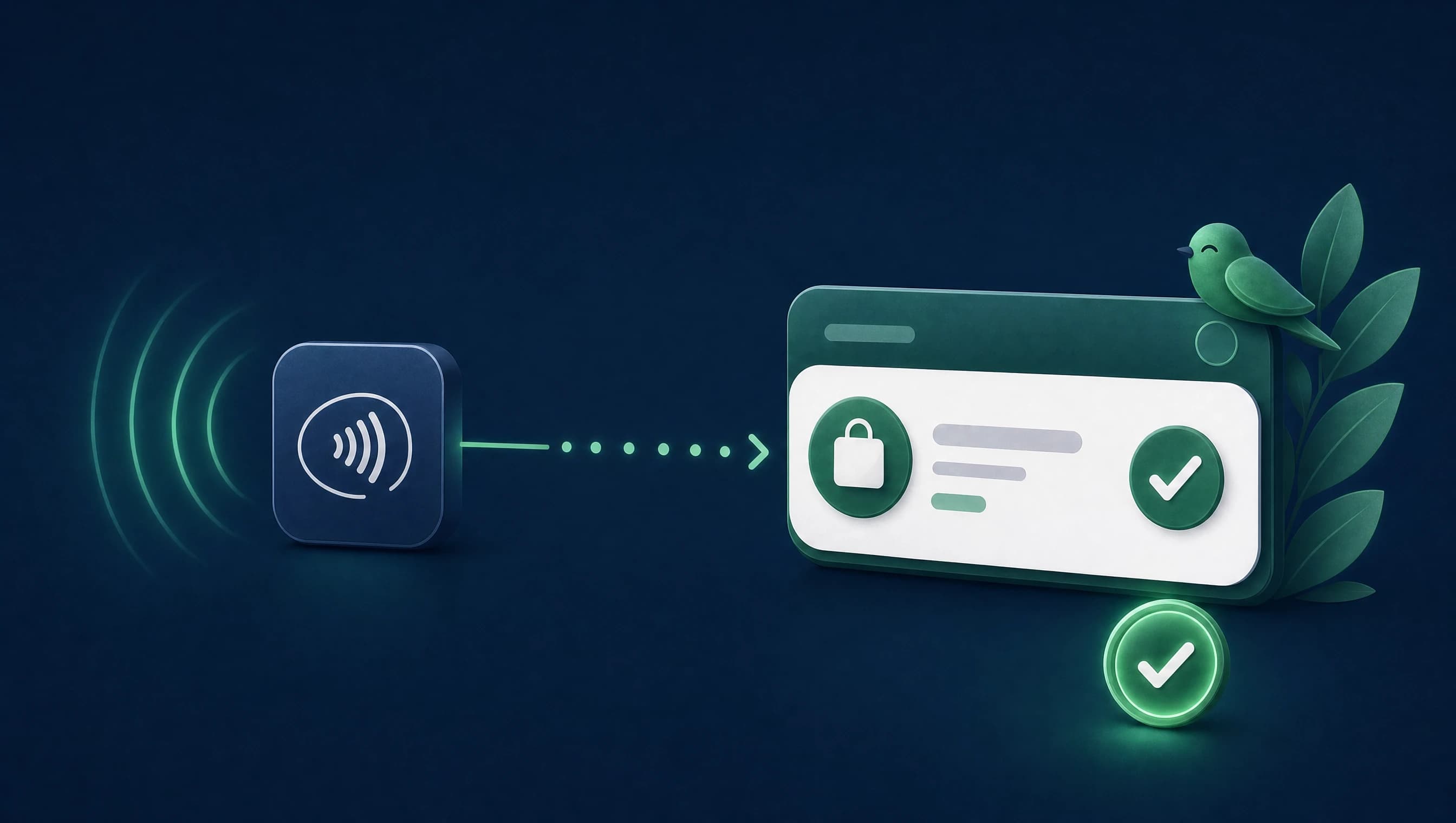
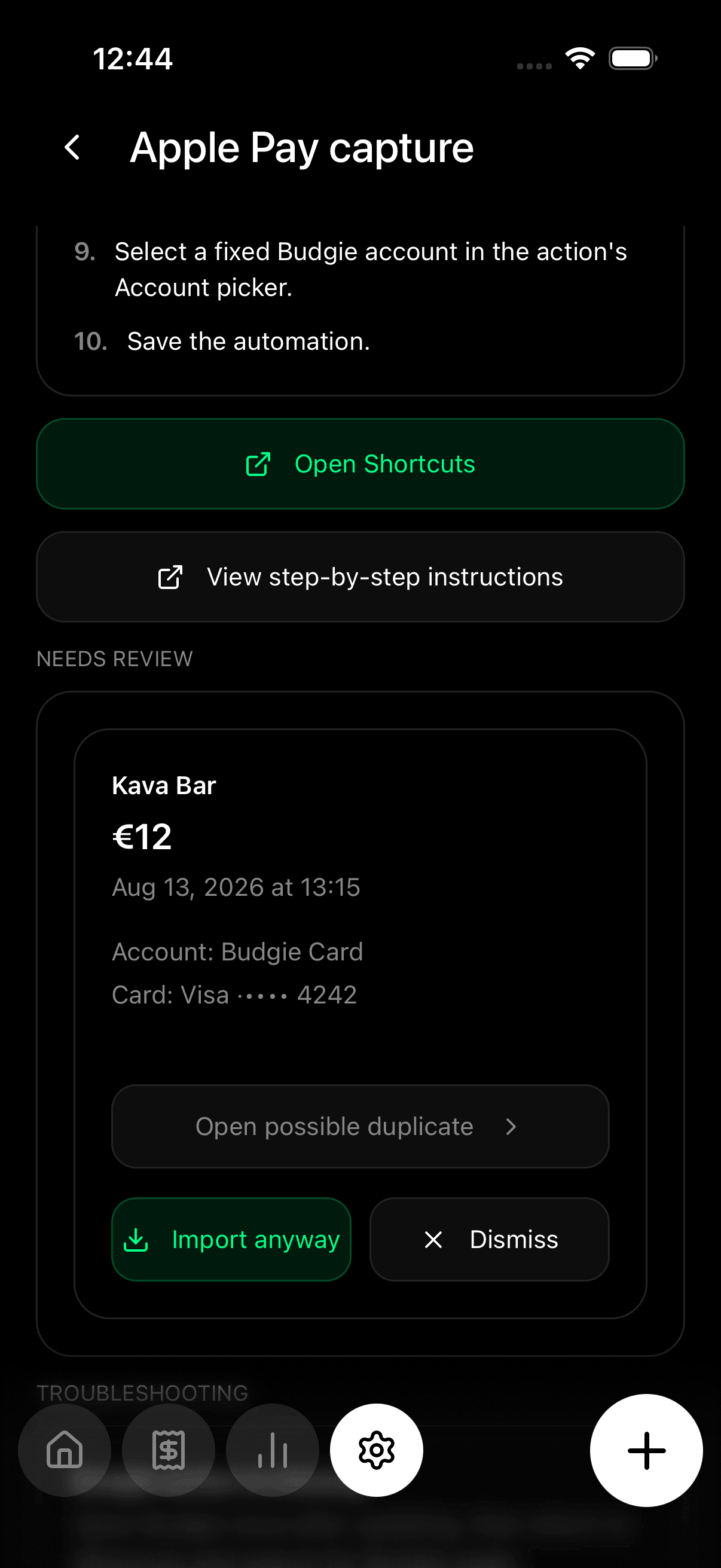
Make a small Apple Pay payment after the automation is saved. Open Budgie and review the captured payment before it becomes a regular transaction. Confirm the merchant, amount, account, and card.
Confirm Apple Pay capture is enabled in Budgie, the Shortcuts automation is saved, the Budgie action is in the automation, and each Wallet transaction field is bound to the matching Budgie field.
Reopen the Shortcuts action and make sure you used Wallet transaction variables, not typed sample text or fixed numbers.
Review catches duplicates, lets you choose the right action, and keeps imported Apple Pay events under your control before they affect reports.
Budgie does not read your Wallet history and does not receive a live feed from Apple. The automation runs on your iPhone and sends the selected future payment fields to Budgie. Your Budgie database stays local-first and under your control.
Join the Budgie waitlist and be the first to experience truly private expense tracking.
Join Waitlist